
Work in Progress
〰️
Work in Progress 〰️
The Ultimate Wii U Hacking Guide (2026) | Aroma Written Tutorial
The homebrew scene for the Wii U is quite extensive and alive in 2026. Thank you to all the homebrew developers that are keeping this console going. You can view the list of homebrew devs and their contributions HERE.
Section 00: Glossary
Click on the section to bring you to that particular part in the written guide.
Click the timestamp to bring you to that particular part in the video guide.
Section 0: Introduction 0:05
Section 00: Glossary 3:01
Section 01: Items Needed 03:11
Section 02: SD Card Setup 04:34 -
Section 03: wifi connection & firmware update 09:30
Section 4-4a: Website Vulnerability Access 10:26
Section 4b: Wii U NAND Backup 11:40
Section 4c: Installing payload-loader 14:32
Section 4d: Autobooting Aroma 16:27
Section 5: vWii Hacking 19:06
Section 5a: Installing Homebrew Channel to vWii 19:23
Section 5b: Installing Priiloader 20:20
Section 5c: d2x cIOS Installer 22:47
Section 5d: Patched IOS80 Installer 27:35
Section 6: Features and Shortcuts 28:40
Section 6a: HB App Store 29:05
Section 6b: Updating Aroma: 29:44
Section 6c: Wii U Plugin System Config Menu 31:14
Section 6d: Boot Selector Menu & Environment Loader Shortcuts 32:28
Section 7: Pretendo Network 34:18
Section 7a: Setting Up Pretendo Account from the Console 36:02
Section 7b: Setting Up Pretendo Account from the Website 38:16 - Need to include pretend site info
Section 8: Transferring Saves with the Savemii App 39:58
Section 9: Removing Hacks 42:31
Section 0: Introduction
The Wii U is an incredible console once modded. It brings back features Nintendo shut down, like online multiplayer through Pretendo, eShop style game installs, emulators, game backups, and so much more. Modding, also called hacking, is way easier than on most other consoles. No soldering or hardware changes are needed, just an SD card and following clear steps. This PFG guide walks you through everything step by step, perfect for beginners. Most of the technical details here come straight from the official wiiu.hacks.guide. A huge thank you goes to the homebrew developers, including the Nintendo Homebrew team, Maschell, and everyone on GBAtemp who poured their time and skills into making this possible for free!
Overview of the Hacking Process
Installing Aroma, the modern custom firmware or (CFW), hacks your Wii U so you can run homebrew apps, game backups, plugins for things like region-free play or better controller support, Pretendo online features, USB Loader Access, and more. Aroma improves on older methods like Tiramisu. With it, homebrew apps appear directly on your Wii U menu, just like official games. The entire process is a softmod, meaning it’s all done through software. No opening the console is required. bricking, or permanently breaking the system, is extremely rare as long as you follow the steps carefully. We’ll back up your NAND, a full copy of the internal memory, early on as a safety net. Ready? Let’s mod your Wii U and bring it back to life in the new year!
Section 01: Items Needed
Before we start modding, gather these items. Having everything ready ahead of time makes the whole process go much smoother and helps avoid any annoying stops along the way.
1. Wii U console plus GamePad
Your Wii U needs to be completely stock, meaning unmodded with no previous hacks installed. If someone already modded it with an older method, remove it beforehand. Some previous hacks and how to remove them are as follows:
CBHC - (Coldboot Haxchi) Click the link for removal instructions
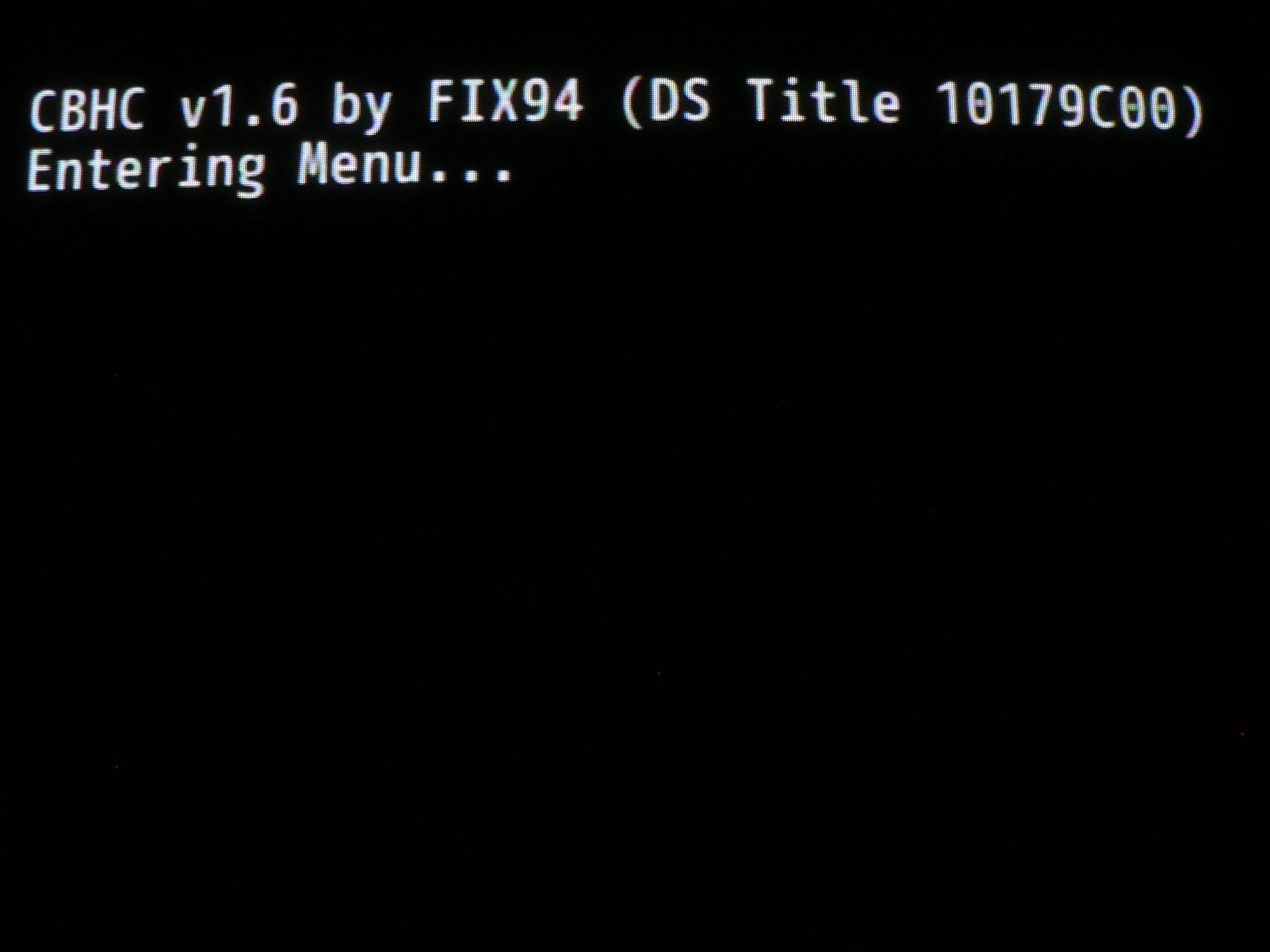
Haxchi - (Uninstall the Haxchi app from Data Management in the System Settings app, make absolutely sure it isn’t CBHC as this will kill your console doing this step. You will see this screen on boot up if you have CBHC.
Indexiine - or anything similar, you must remove that first to avoid problems. (click the link)
Tiramisu - This can still stay on your SD card if you currently have it. It is located on your SD card in wiiu > environments > Tiramisu. The Aroma folder will be located in the same wiiu > environments folder > Aroma. They can co-exist but only one can be ran at a time. Holding the “X” button on the gamepad while your Wii U is booting will load you into the environment loader if ytou currently have Tiramisu, where you can see Aroma and Tiramisu. Pressing A on the firmware will load that firmware. The difference is Tiramisu apps will not work on Aroma which requires specific .wuhb app files placed in the wiiu > apps folder on the SD card.
2. SD card or MicroSD card inside an SD adapter
Get at least 32GB or above, which is ideal if you plan to add lots of homebrew apps, NAND backup and more. Always choose a reliable name-brand card such as SanDisk, Samsung, or Kingston. Cheap no-name cards from places like eBay often fail, corrupt files, or cause errors that can waste hours of troubleshooting.
3. Wiimote (Wii Remote) – optional but strongly recommended
The Wii U has a built-in full Wii system called vWii. Modding that side unlocks great extras like USB Loader GX for Wii game backups from a hard drive, classic emulators, and more. You need a Wiimote to complete the vWii hacking steps because it handles pointing and button inputs during the exploits. If you do not have one yet, you can skip vWii modding for now and add it later. The main Aroma setup for Wii U mode does not require it.
4. Wi-Fi internet connection
A stable internet connection on the Wii U is needed for a few important steps: updating the firmware if required, running the browser exploit, and later using the Homebrew App Store to download extra apps easily.
5. Computer/PC (This guide uses a Windows 11 PC)
You will use this to download all the necessary files and copy them onto your SD card.
6. USB SD card reader or adapter (only if your computer lacks a built-in SD card slot)
Most laptops have one built in, but if yours does not, a simple USB adapter plugs into any USB port and lets you read and write to the SD card without issues.
That covers everything you need. No special tools, no soldering, and no extra consoles required. Once you have these items collected, you are ready to move forward. For best results, keep your Wii U plugged into power during the entire process to prevent any accidental shutdowns.(Quick extra tip: Many people add a USB hard drive or SSD later for storing games and backups. If you plan to do that, you can follow my next guides in the series after completing this one.
Section 2: SD Card Setup
We will now get your SD card setup so your Wii U can read it correctly along with placing the SD card files on your SD card. There are two downloads for this process. The PFG Wii U 2026 SD Card Package(SD Card Files) & guiformat (Allows you to format the SD card correctly)
Download 1: Download the PFG Wii U 2026 SD card package HERE
Download 2: guiformat
The Wii U can only read FAT32 formatted SD cards, which is what guiformat will do for us. Place your SD card into your PC and launch the guiformat program.
On the left side is a list of the drives connected to my PC.(This PC app in windows 11)
On the right is GUIformat.
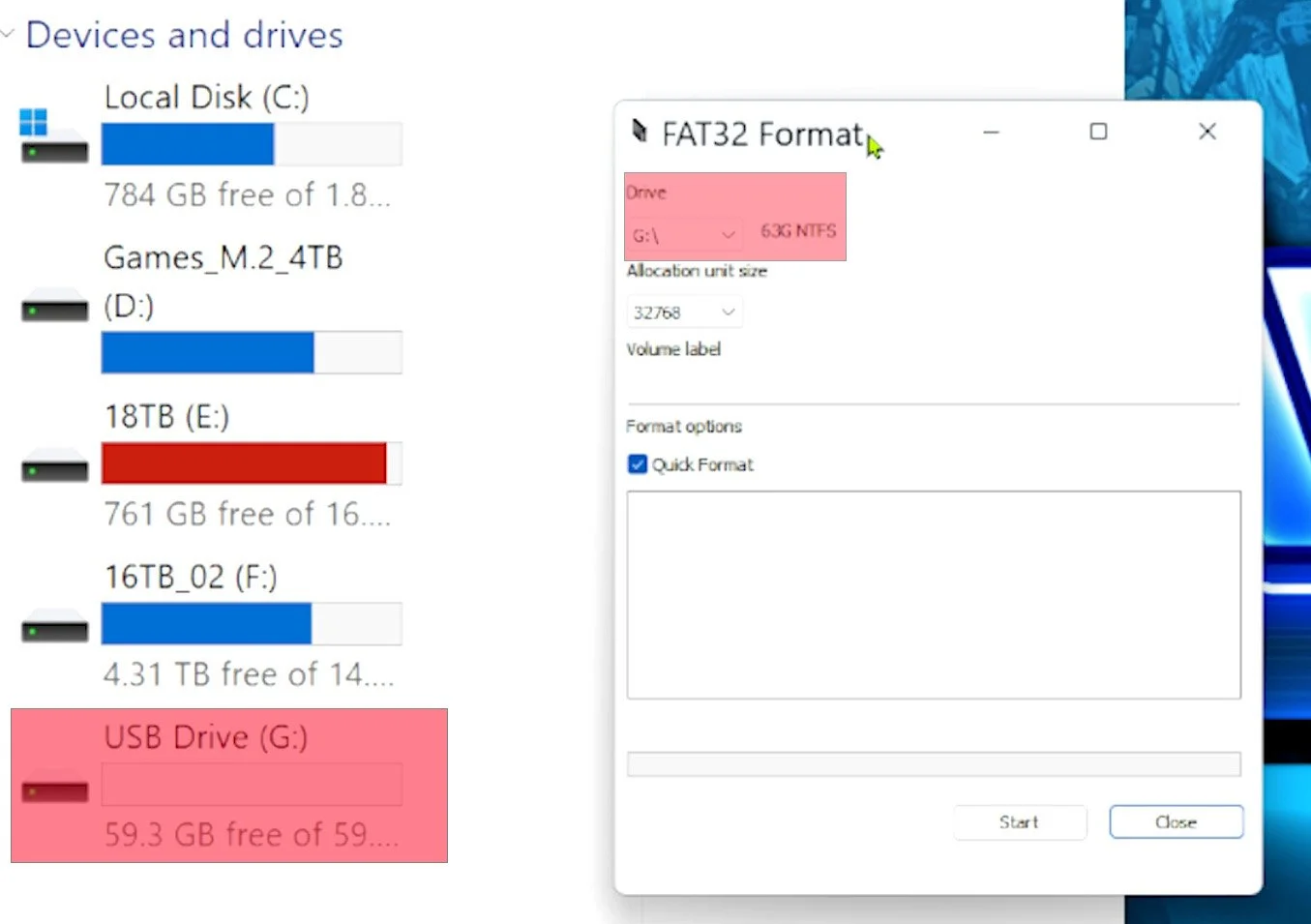
Make absolutely sure you have the SD card that you want to format selected in the drive option in guiformat. This will erase everything on the drive.
For allocation unit size - choose 32768
For volume label - this will be what you name the SD card, name it whatever you want besides wiiu as that can cause issues.
Make sure quick format is checked.
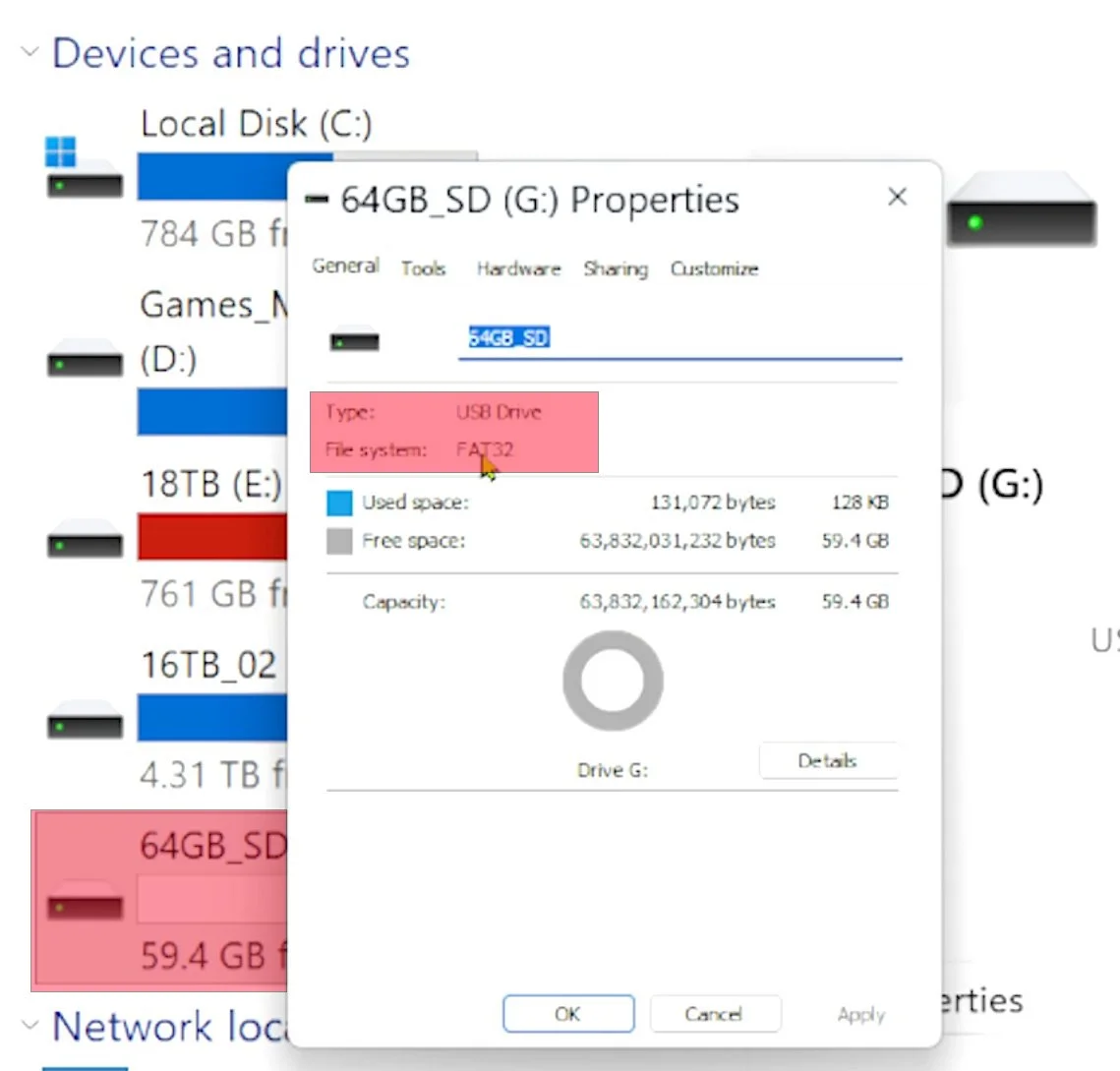
Once those options are ready, close out of ALL windows besides guiformat. You will get a formatting error if all windows aren’t closed. Press the start button in guiformat when ready. This will take only a few seconds to format. Once complete, right click on your drive in “devices and drives” and go to properties. You should now see FAT32
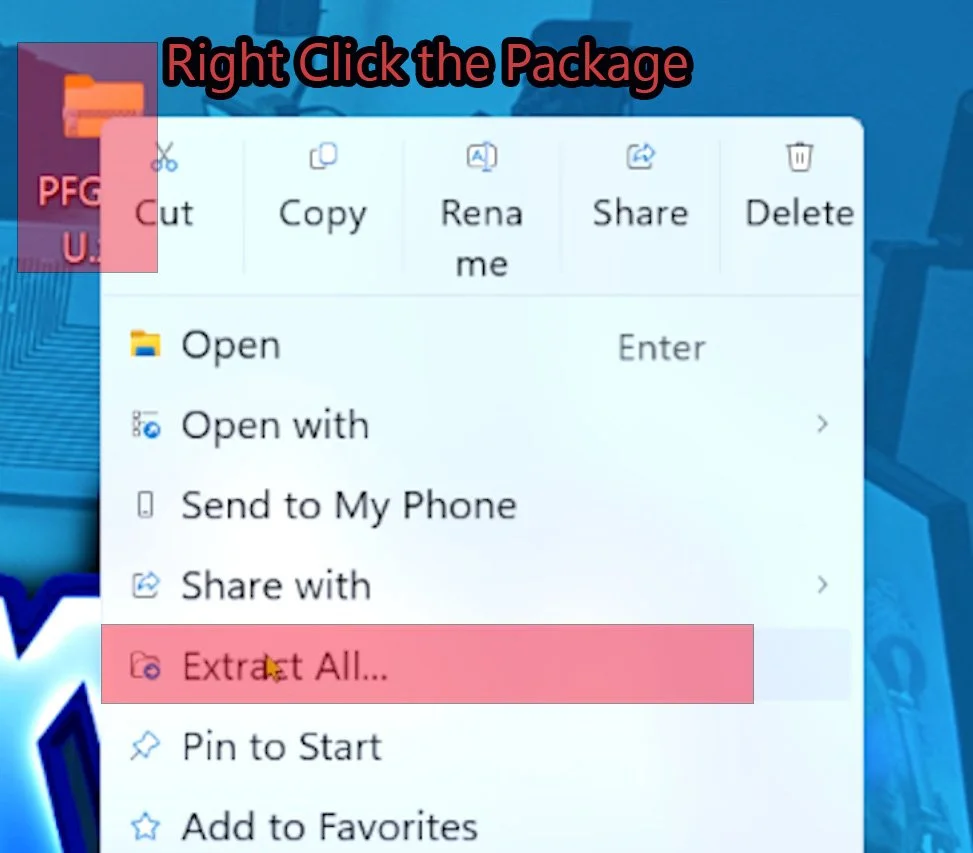
Your SD card is setup and ready for the SD card files transfer. Right click on the PFG Wii U 2026 package and press extract all. This will bring you to another option to extract
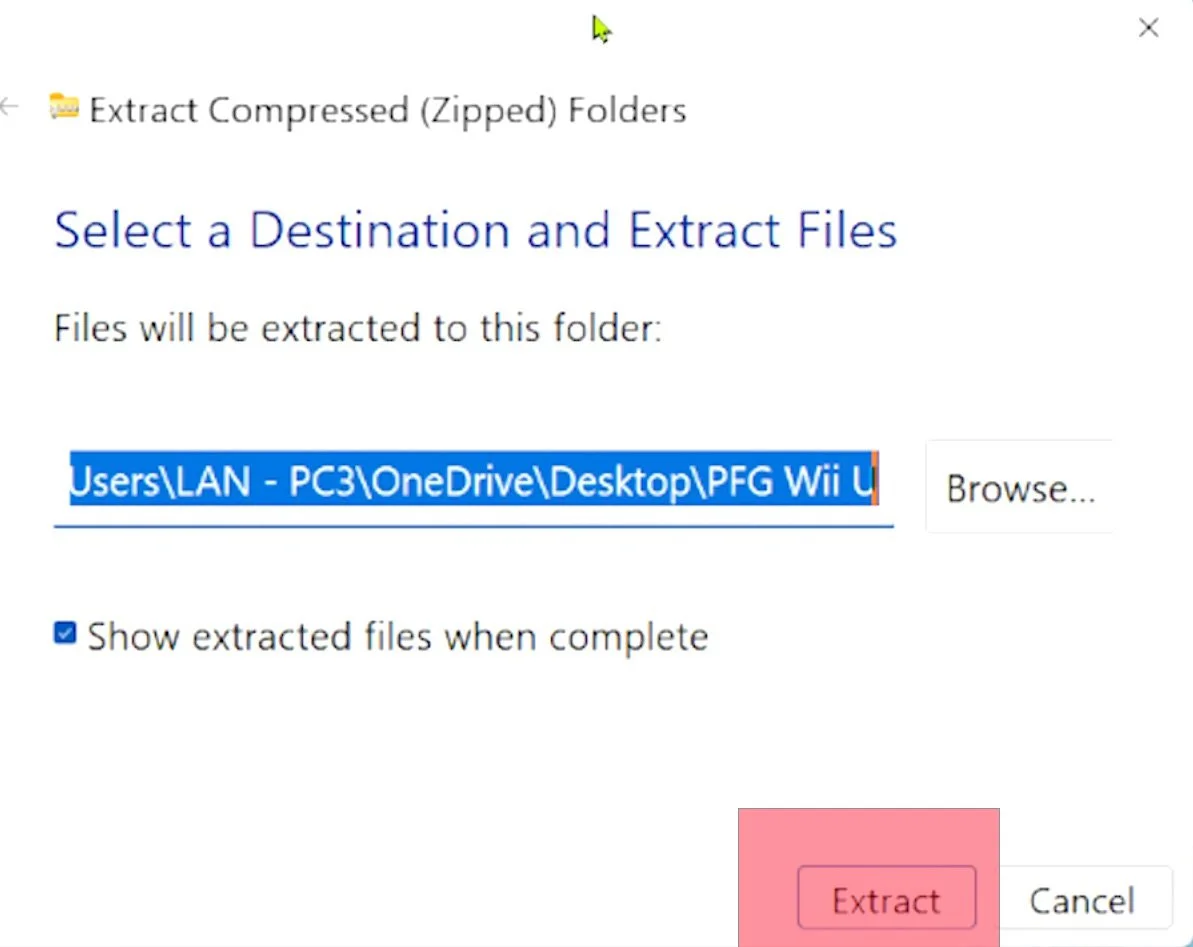
Once the package is extracted, place every folder in the extracted PFG package, onto the root of your SD card. Root meaning inside no others folders. Just highlight all the folders, and drag/drop them onto the root of the SD card.
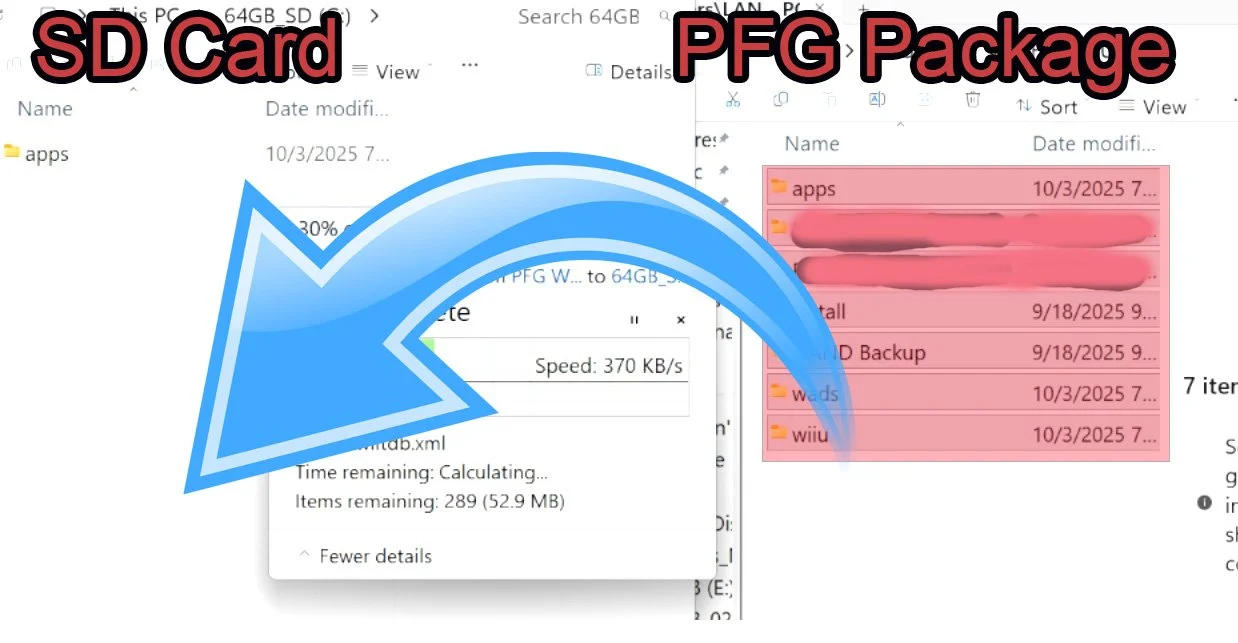
Your SD card is now ready. Here is a quick overview of the folders and their meaning.
Wiiu folder - This is where everything relating to the Wii U side is located.
-apps folder inside the wiiu folder - where every wiiu app is located. Simply dropping a .wuhb app file into this apps folder, will allow the app to show up and be used on the wii u home menu.
-environements folder - This is where everything related to Aroma custom firmware is located along with plugins
Apps folder - the apps folder on the root of the sd card is where everything related to vWii (wii side) of the system. Any Wii app is placed in this folder.
Install folder - This is where disc backups and game install folders are placed. Once in this folder, the Wii U homebrew app - WUP Installer, will look inside this folder, and install the game files that you placed here, to your USB storage device.
NAND Backup - This is where your NAND files (internal memory) will be backed up to. NAND backups are great to have in case you somehow brick (kill) your console. These files can bring it back from the dead.
WADS folder - WAD files are installable games related to wiiware, wiivc, and forwarders. This folder will hold them to installing later.
Section 3: Wifi Connection & Firmware Update
Place your SD card back into your Wii U.
Turn on your system
Open the system settings icon on your Wii U menu.
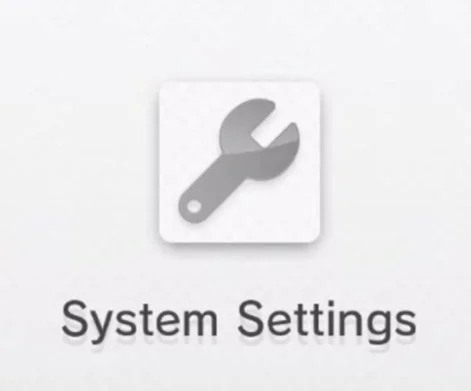
Once in settings, select “Internet” to make a wifi connection if you have not already.
Once wifi connection is made, back out and look at the top right corner.
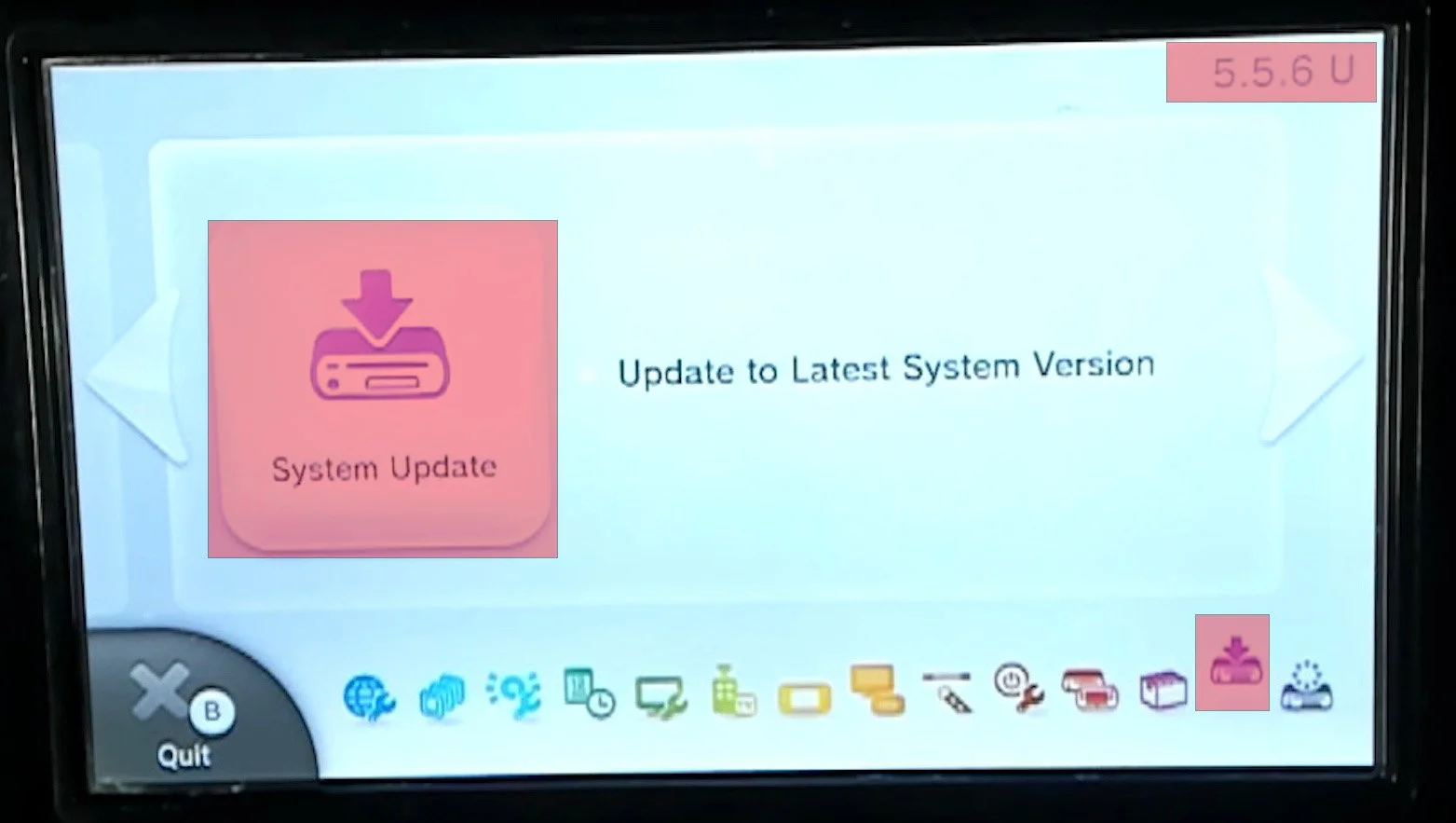
You will see a number, which is your current firmware version.
The latest is 5.5.6U for North America & 5.5.5E for Europe.
If your version is lower than this, you will need to update the firmware by selecting the second last icon in the bottom of the gamepad, and choose “System Update” and go through the prompts to update to the latest official firmware.
Section 4a: Hacking Start - Website Vulnerability Access
Your SD card is setup, official firmware updated, and internet connection established. We are now ready to start the hacking process.
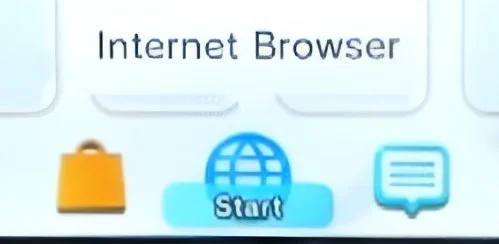
Go back to the homescreen and launch the internet browser icon.
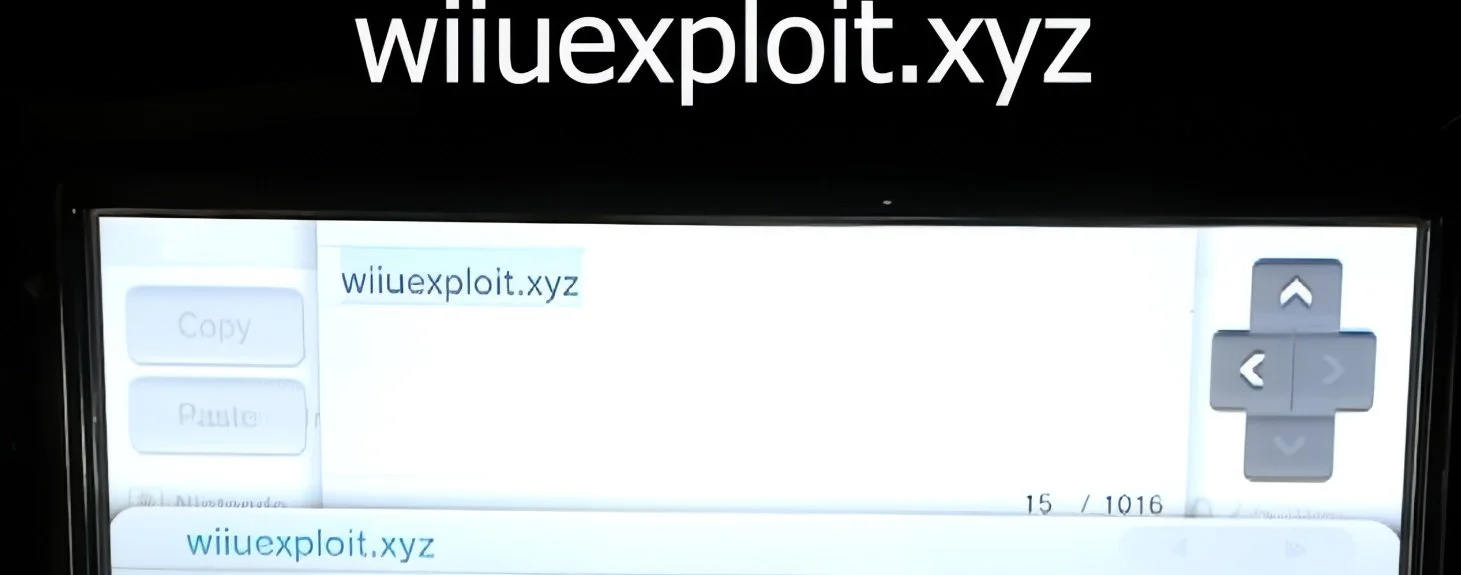
In the top search bar, type wiiuexploit.xyz and press ok
This will bring you to the site. Once the page loads, press the Run Exploit! Button and hold the B button on the gamepad.
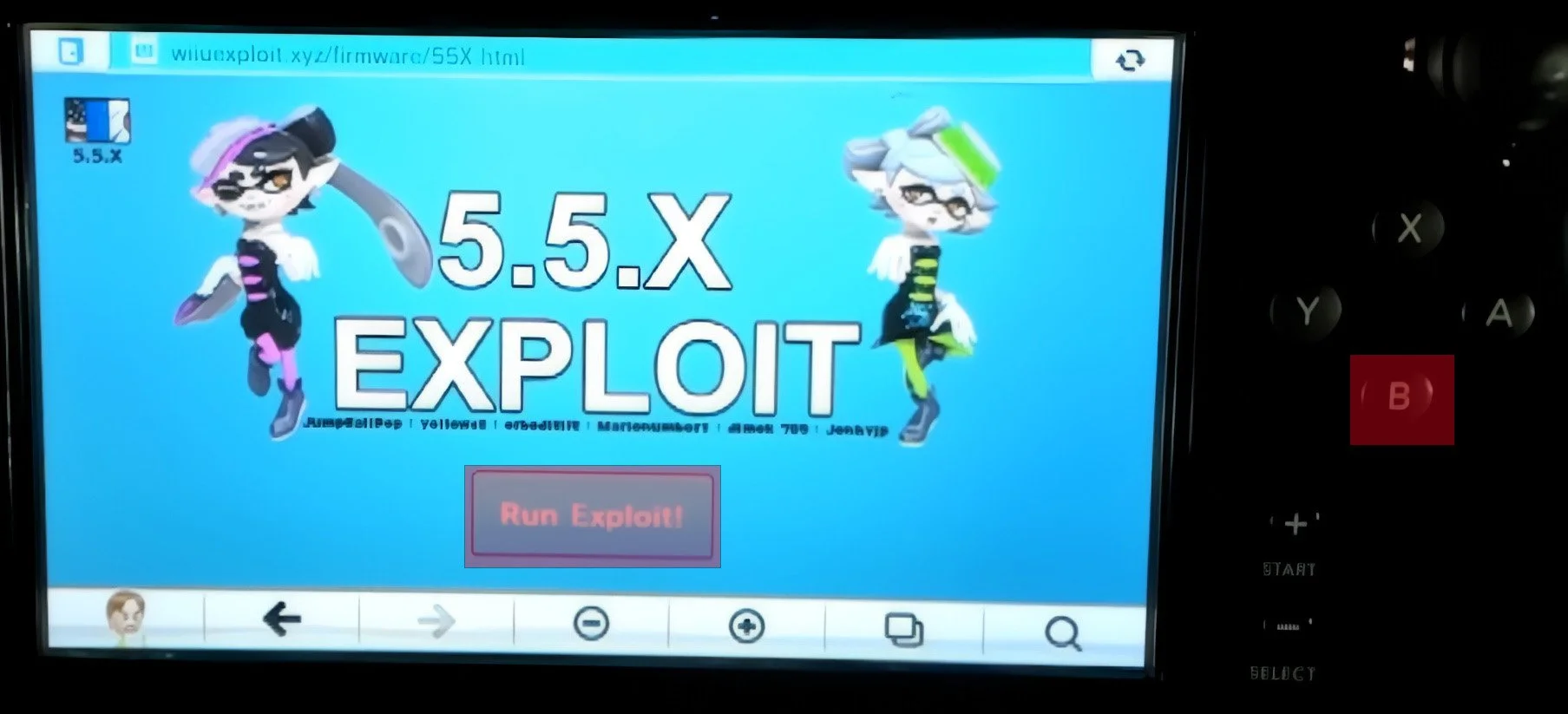
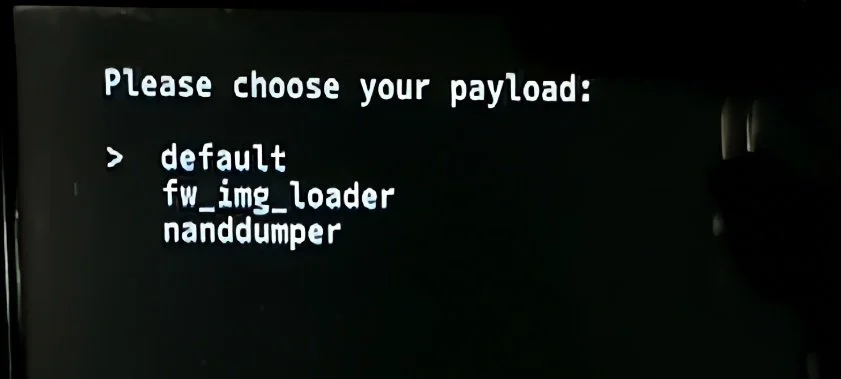
Hold the B button until you see this screen pop up and you can let go of the B button.
*****TROUBLESHOOTING******
If nothing shows up, or you get an error, shut down your system.
Turn it back on and go to your internet browser and settings (top right)
Once in settings select “Reset Save Data” and select Reset.
Once reset, retry the process of wiiuexploit.xyz. If this still doesn’t fix the issue, visit https://wiiu.hacks.guide/common-issues-fixes.html
*****TROUBLESHOOTING END************
Scroll down using the dpad of the gamepad and Press A on nanddumper
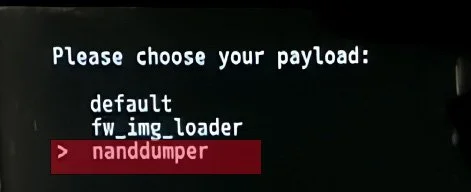
Section 4b: Wii U NAND Backup
We will now make a backup of your Wii U NAND. The Wii U NAND is the flash memory chip on the console that stores the console’s system software, save data, and other important information. It is a great idea to have a backup of this in case any issue arises in the future so you can have an easier way of restoring your console back to normal should an issue arise.
The Wii U has 2 versions of internal storage or NAND size, which is 32GB or 8GB depending on your Wii U model. As a result of this, to create a full backup of your console’s NAND, your SD card has to be larger than the size of your NAND. If you do not have a large enough SD card, you can skip the optional MLC backup section which includes save files and game data which is not needed to recover any type of console issue. In NANDdumper, make sure everything shows YES, unless you don’t want to backup the MLC.
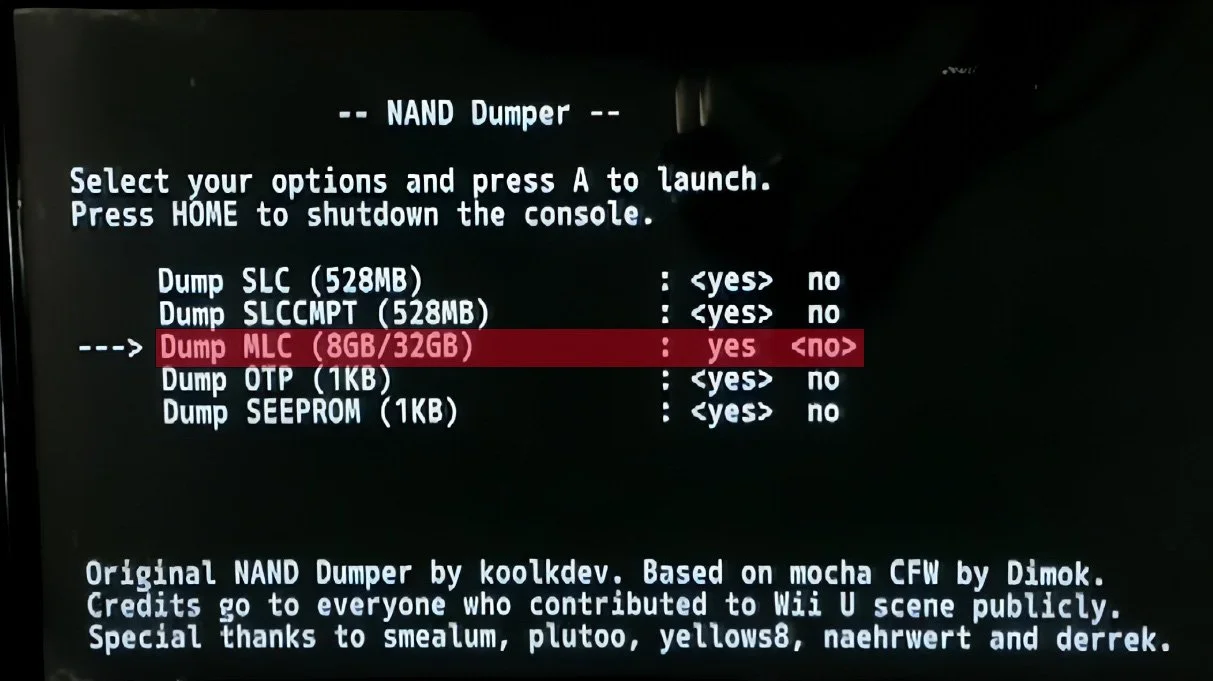
Once you have everything selected in nandumper, press A to start the process. If you selected everything, this will take a decent amount of time to backup - up to 2 hours or slightly longer.
Once the backup is complete, power off your Wii U and take your SD card out. Plug the SD card into your PC. You should see a bunch of files that say mlc.binpart01 02 03 if you backed up your MLC. You’ll also see seeprom, otp.bin, slc.bin, keys.bin and more. These are all backups of your NAND. Create a folder on your SD card called NAND Backup (if it is not already there). Now drag all these NAND backup files into the folder.
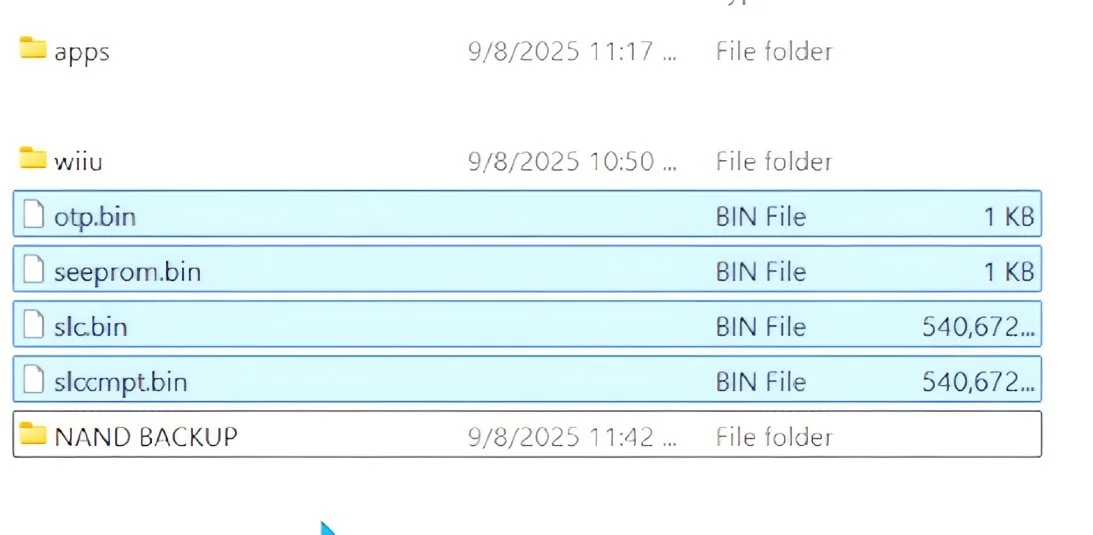
You can now drag the NAND BACKUP folder, which now contains your NAND backup files, onto your PC in a safe spot so you’ll always have access to it. If you have a large SD card, you can also keep it on the SD card so you’ll always know where it is, but it DOES take up a lot of space if you backed up the mlc, so that is a decision you’ll have to make. Once your NAND is backed up to your PC, you can delete the NAND BACKUP folder off your SD card if you choose to do so to free up space.
Section 4c: Installing Payload-Loader
Now that your NAND is backed up in case anything goes wrong later, we can continue with the guide by installing the payload-loader onto the Wii U. Installing this payload-loader will allow us to install Aroma, which is the custom firmware that will allow homebrew apps. Payload-loader acts as a bridge that allows you to bypass some of the Wii U’s standard security and boot processes so that Aroma can be injected into the console.
Plug your SD card into your Wii U system and turn it on.
Launch the internet browser and type in the same site as before which is wiiuexploit.xyz.
Hit “Run Exploit!” and then hold the X button on your gamepad until the environment loader loads.
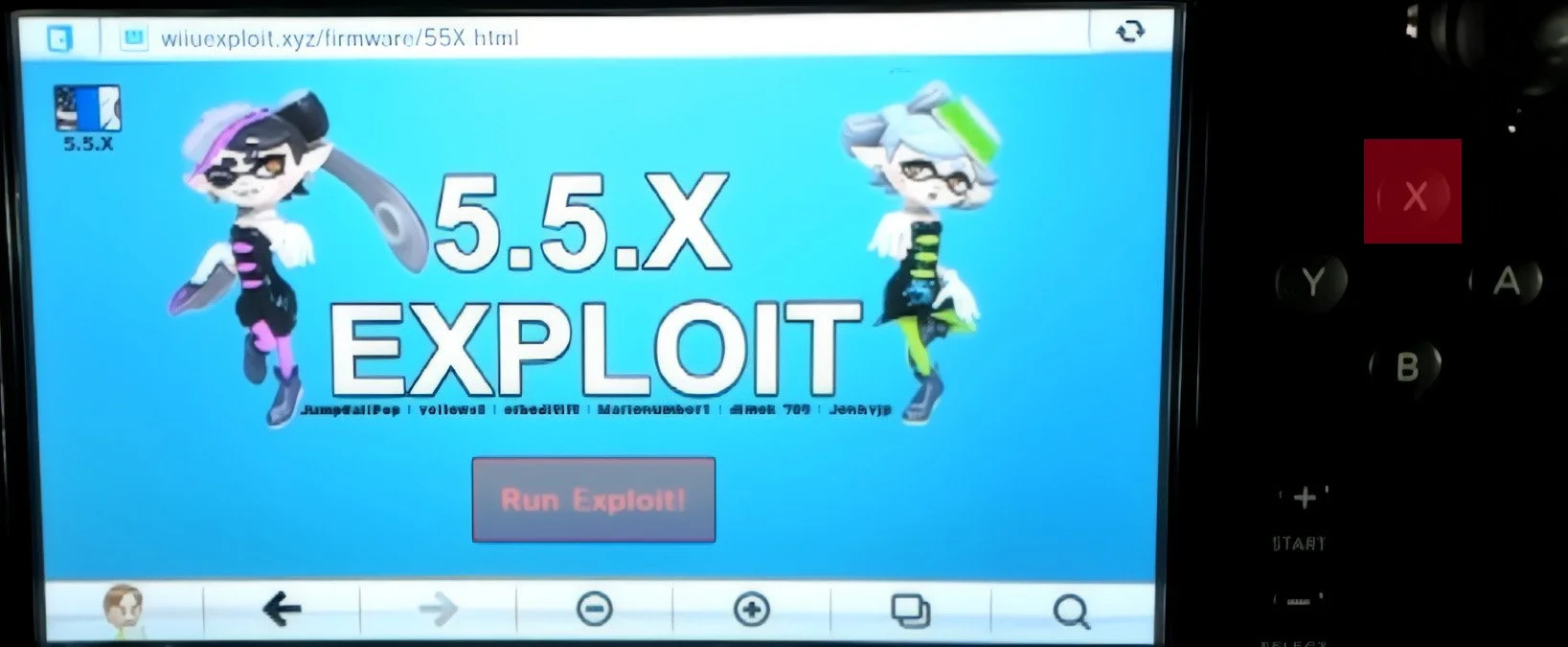
Once in the environment loader, hit the A button on Aroma.
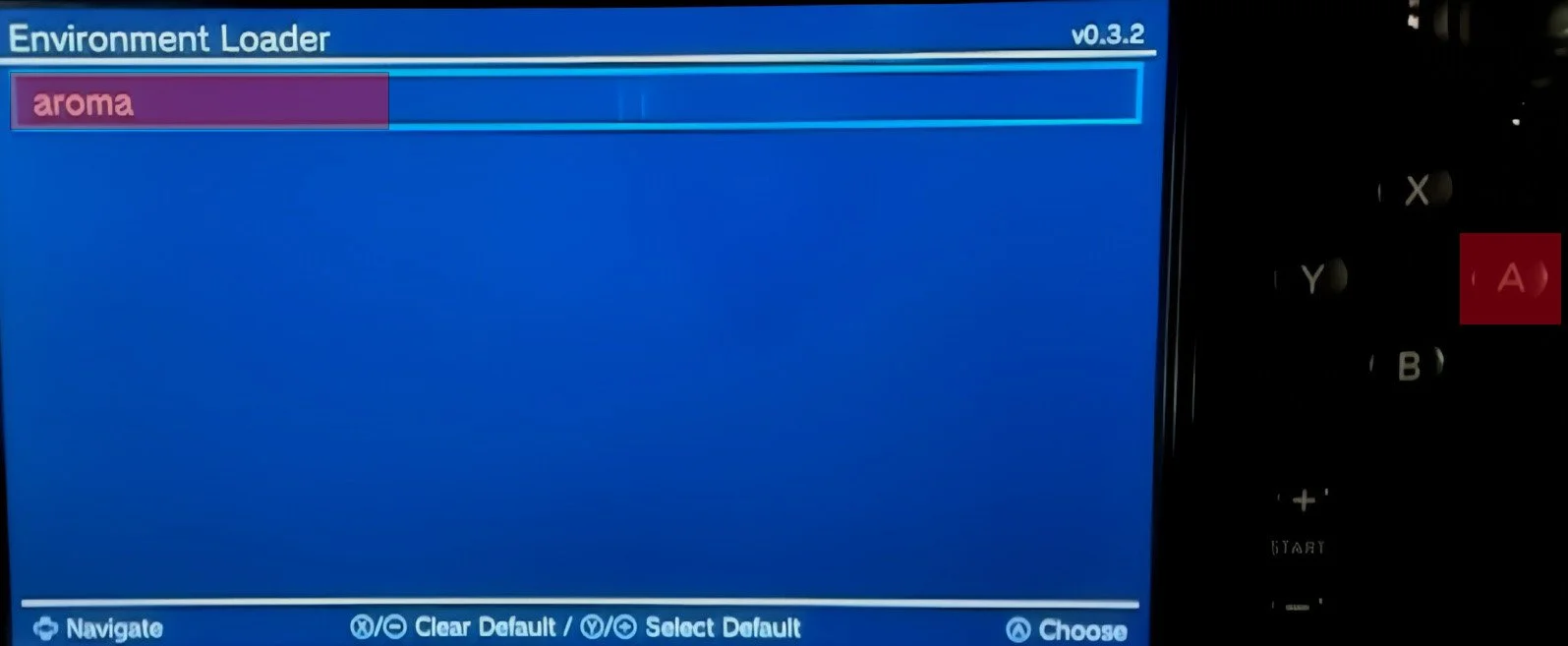
Although it is unlikely Nintendo releases any Wii U system updates, this feature will block them just in case.
On the boot selector screen, press A on Wii U menu.
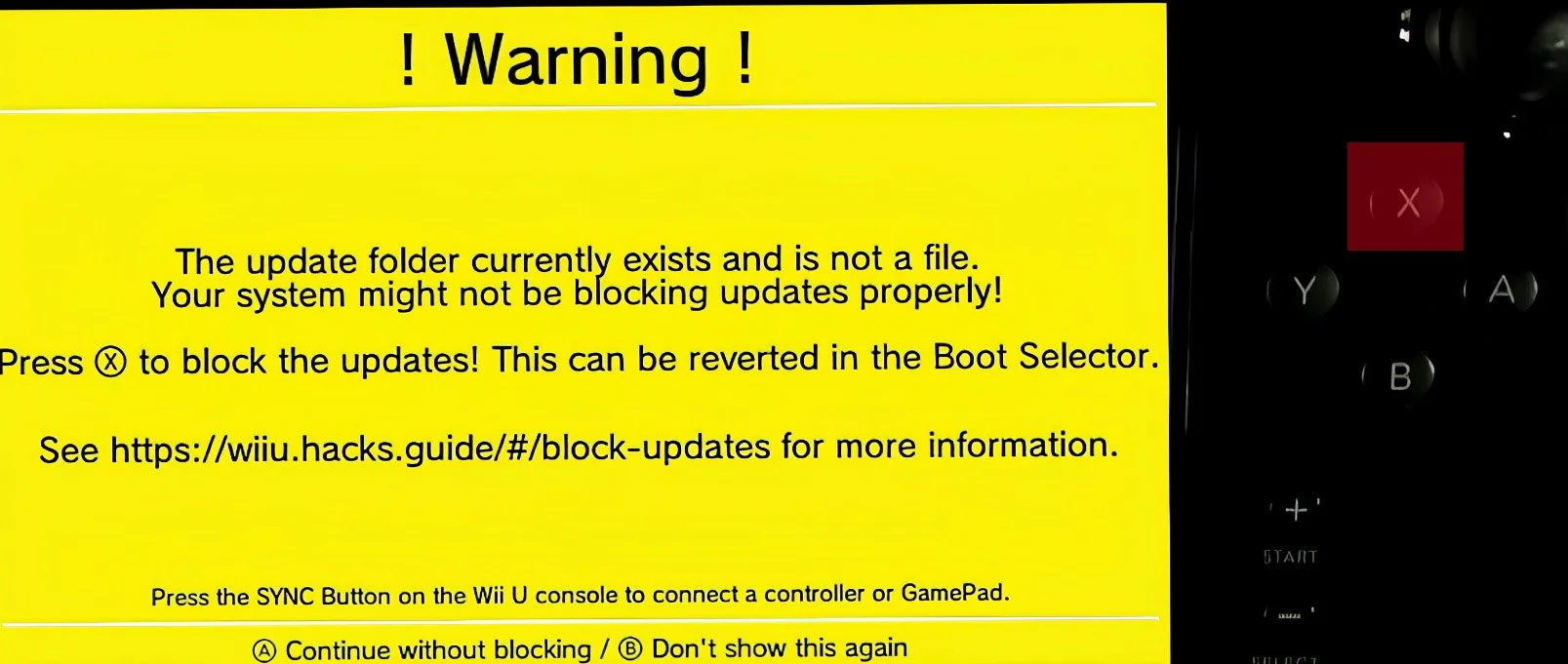
You may get a warning message about the update folder existing. This is normal. Press the X button to block updates. Don’t worry if you don’t see it though.
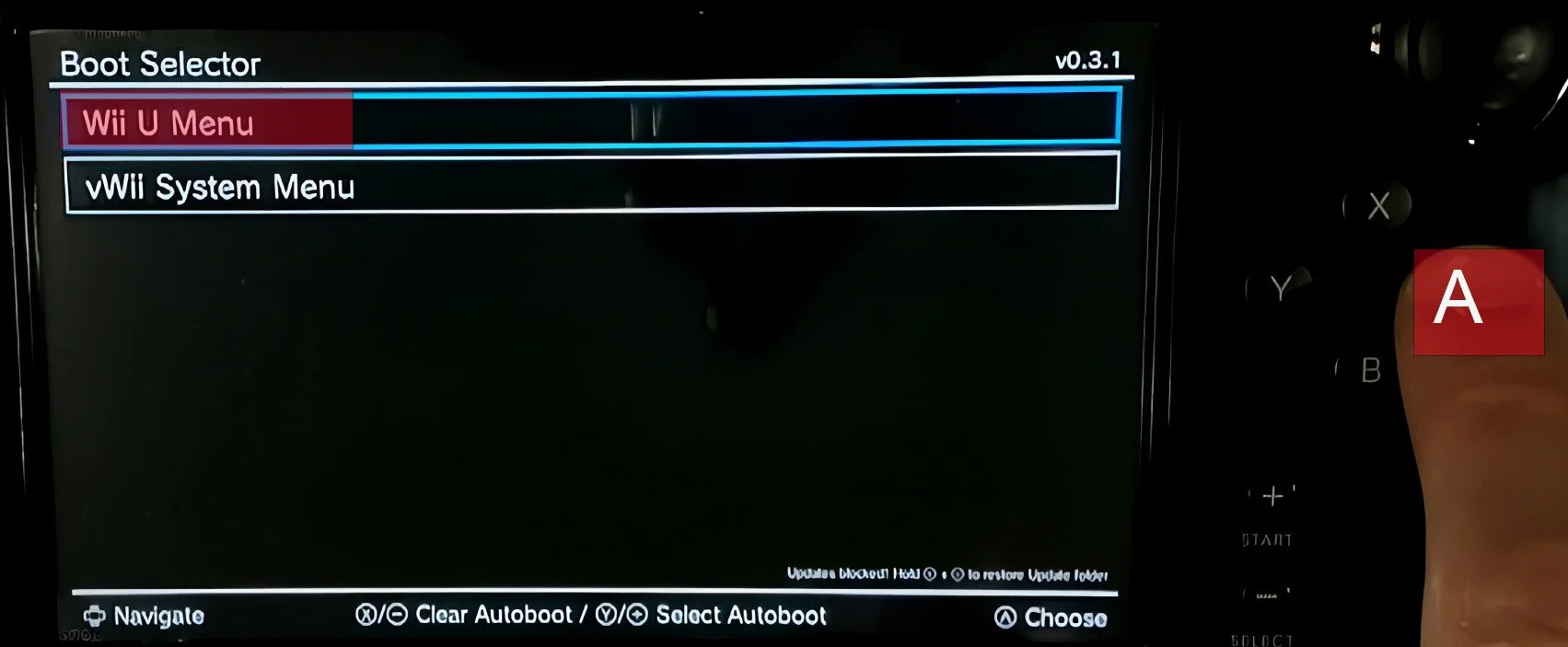
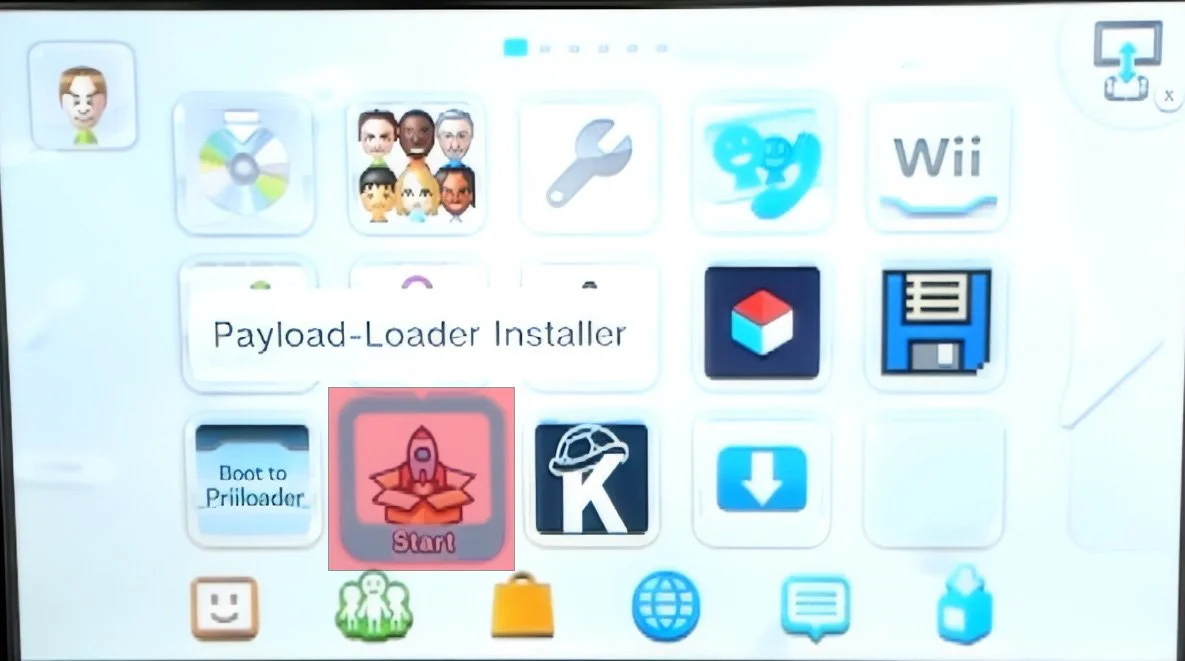
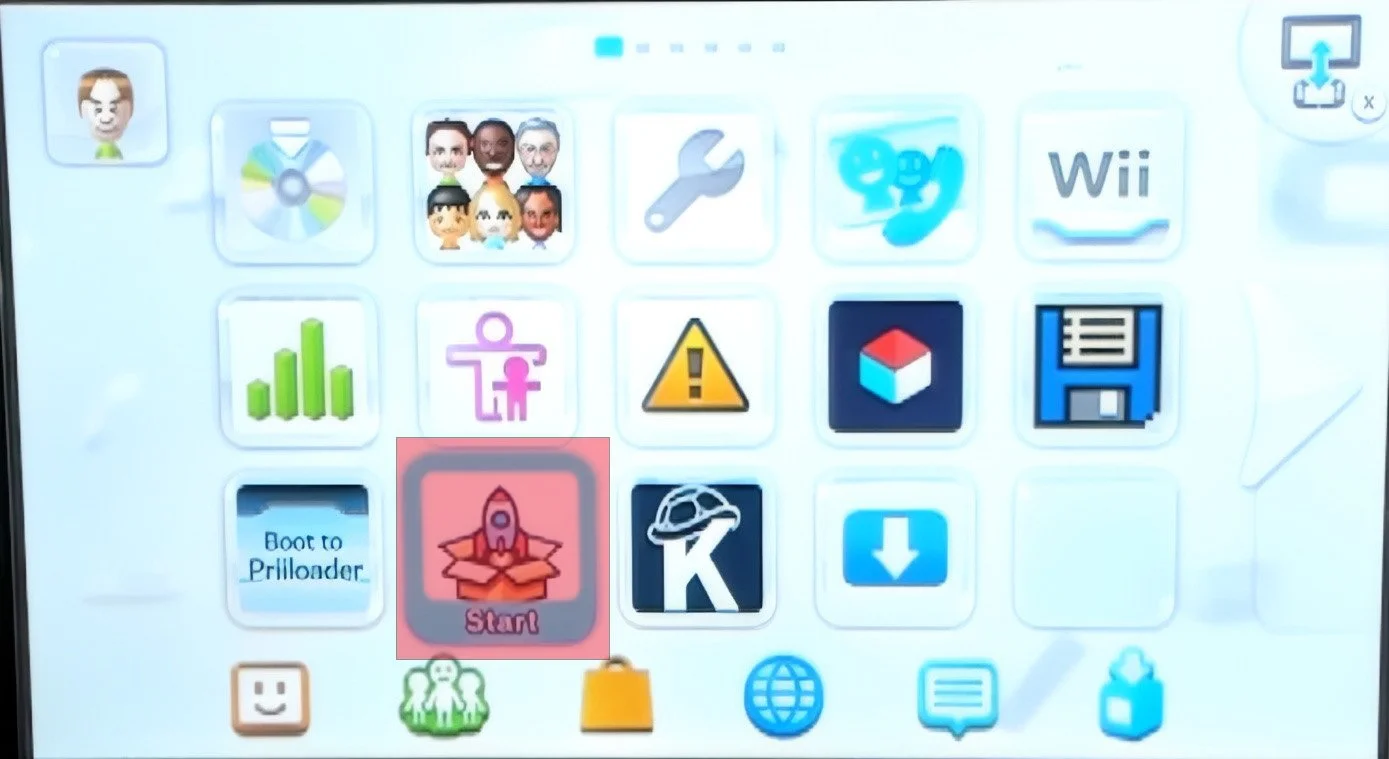
Once loaded into the Wii u menu, look for the payload-loader installer app which looks like a rocket ship in a box.
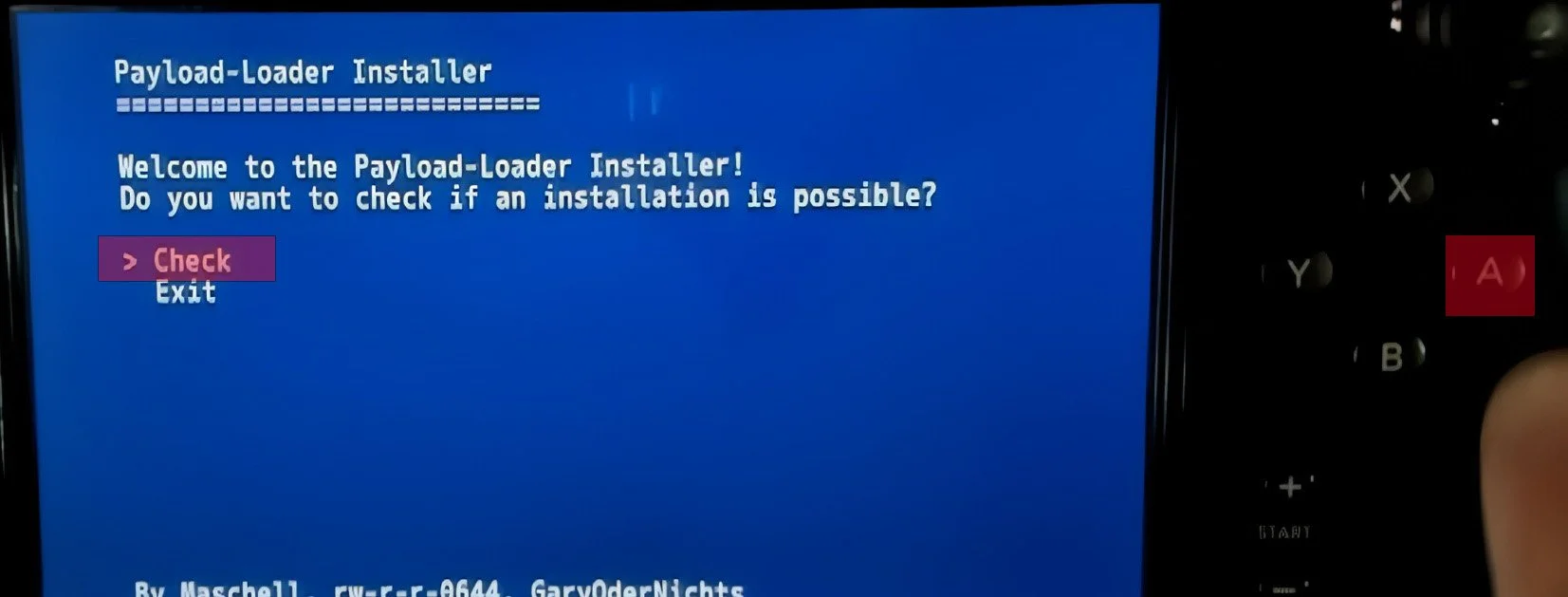
Press the A button to check if you can install the payloadloader.
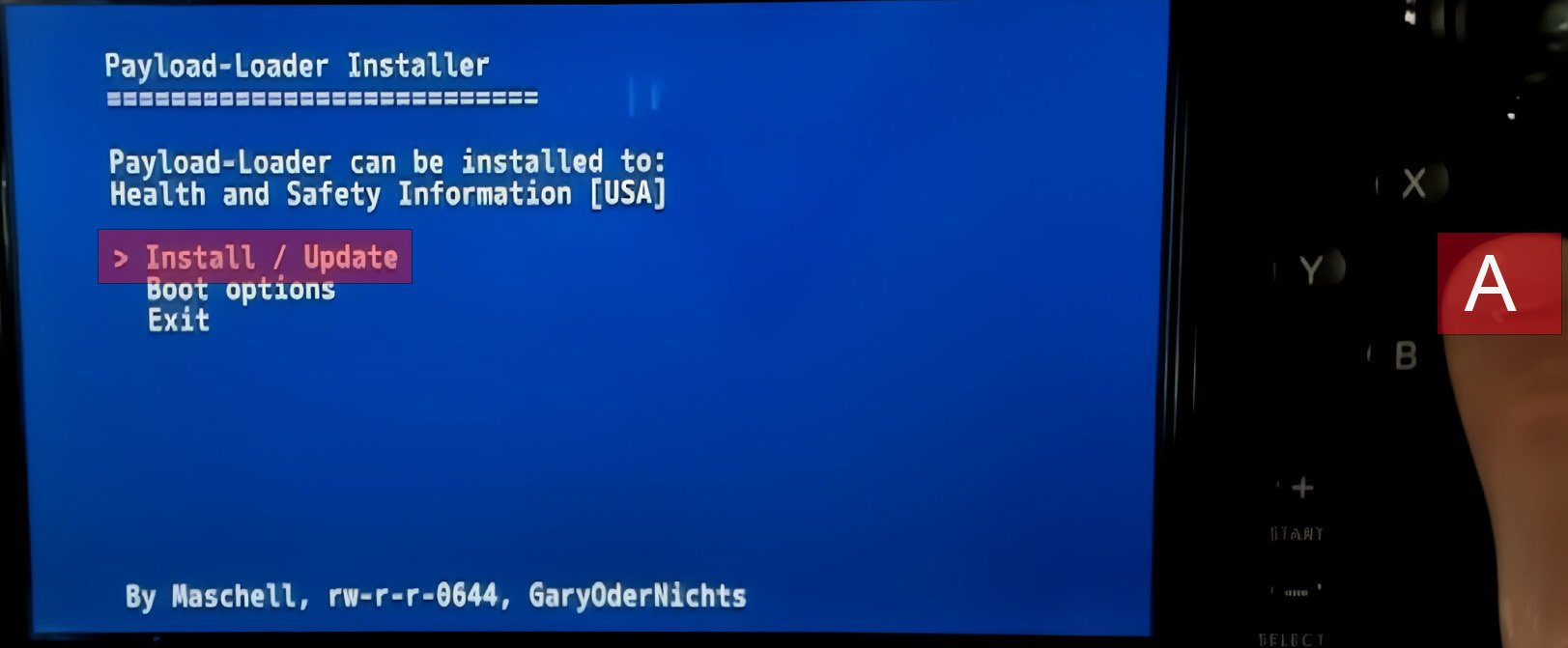
It should say it can be installed onto the health and safety information app. Press the A button to select install/update.
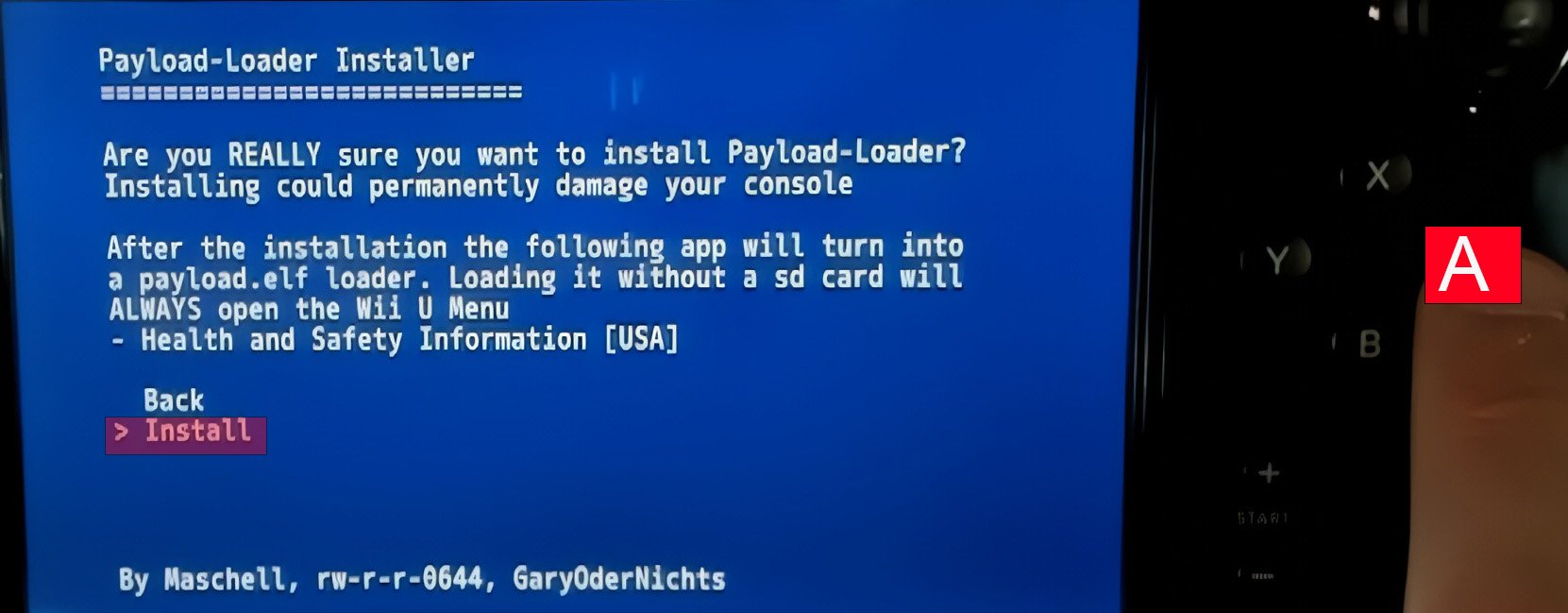
You’ll be asked if you are sure you want to install the payload-loader. Use the dpad to select install and press A.
After installing, press A to shut down the console, and then turn it back on.
Section 4d: Autobooting Aroma
How your Wii U system is setup currently, every time you want to launch Aroma(custom firmware) you will have to launch the health and safety information app from the Wii U menu. Instead of doing this every time, we will have Aroma automatically launch when your Wii U system turns on. To set this up, launch the health and safety information app from the home menu.
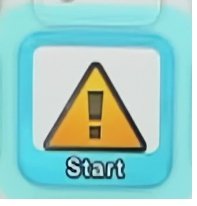
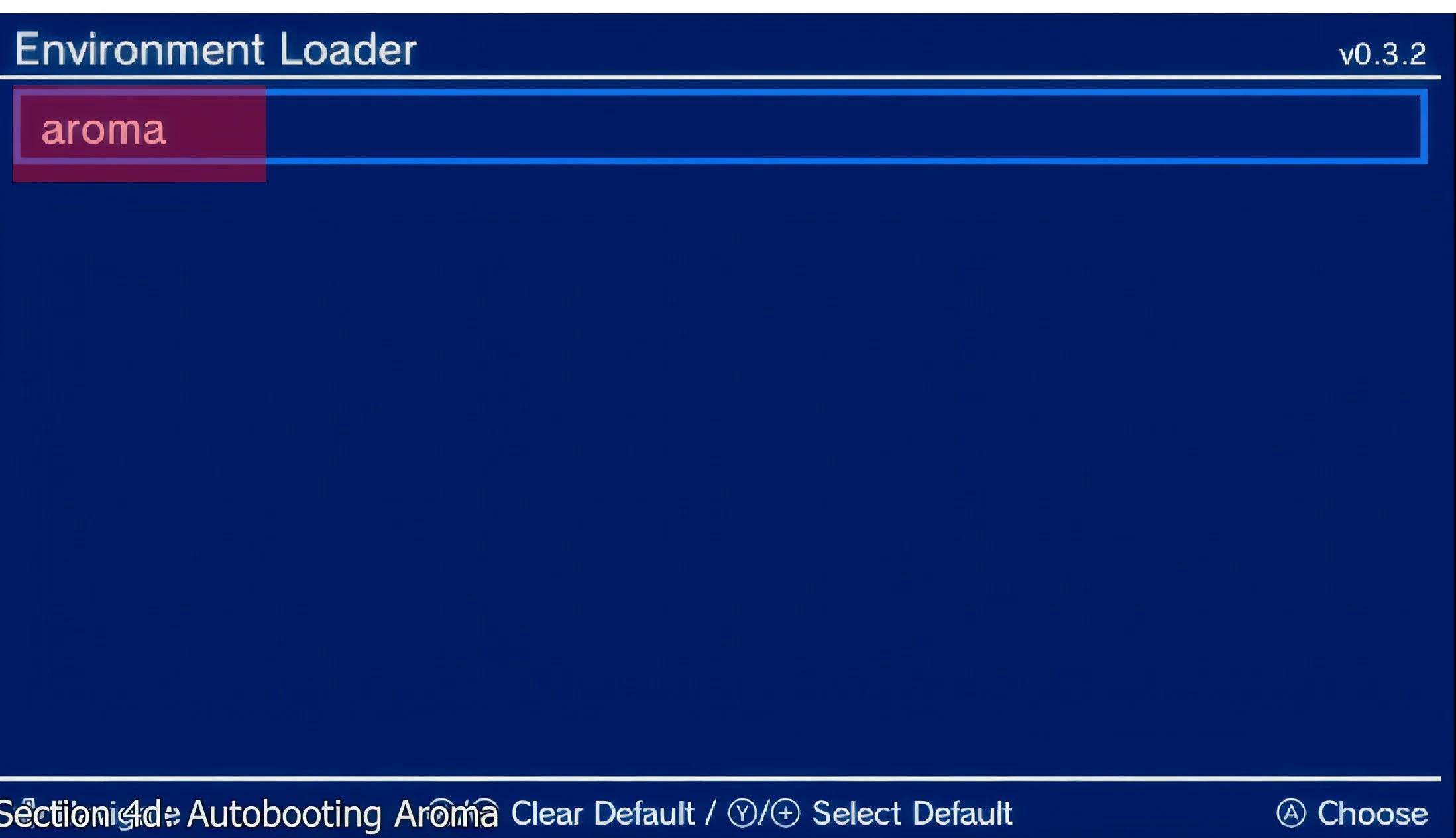
Press A to launch Aroma environment.
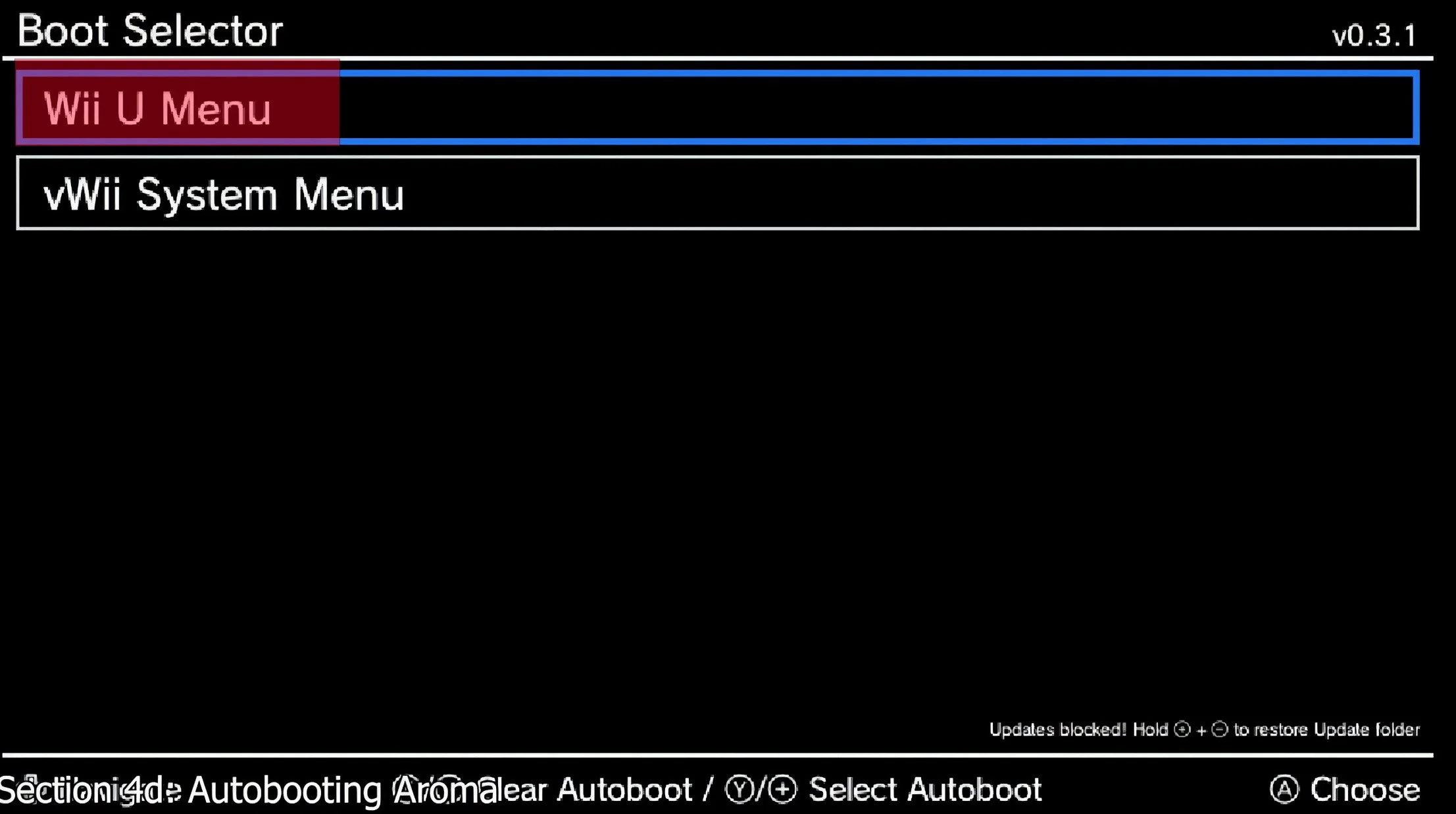
Press A to launch the Wii U menu.
Once you are at the Wii U menu, launch the payload-loader installer.
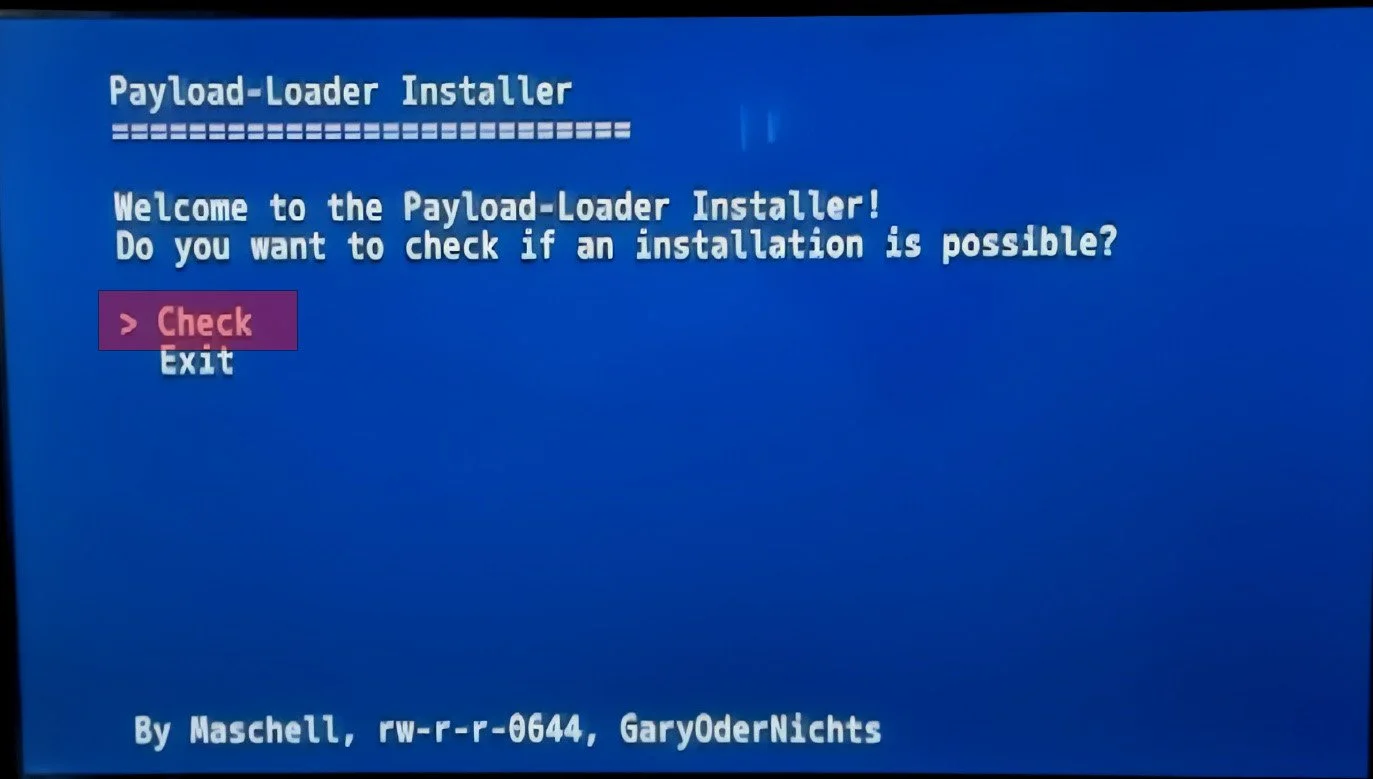
Press A to select check.
Select boot options.
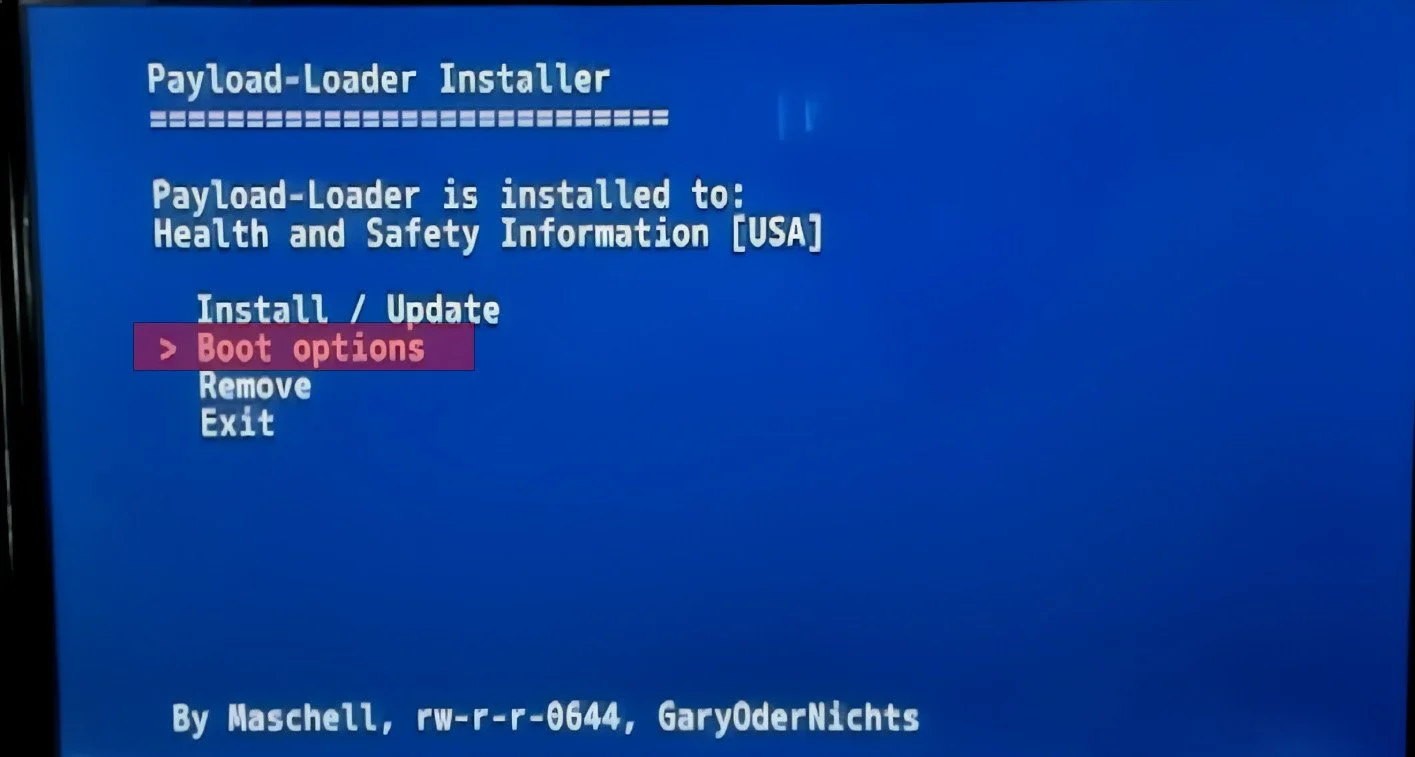
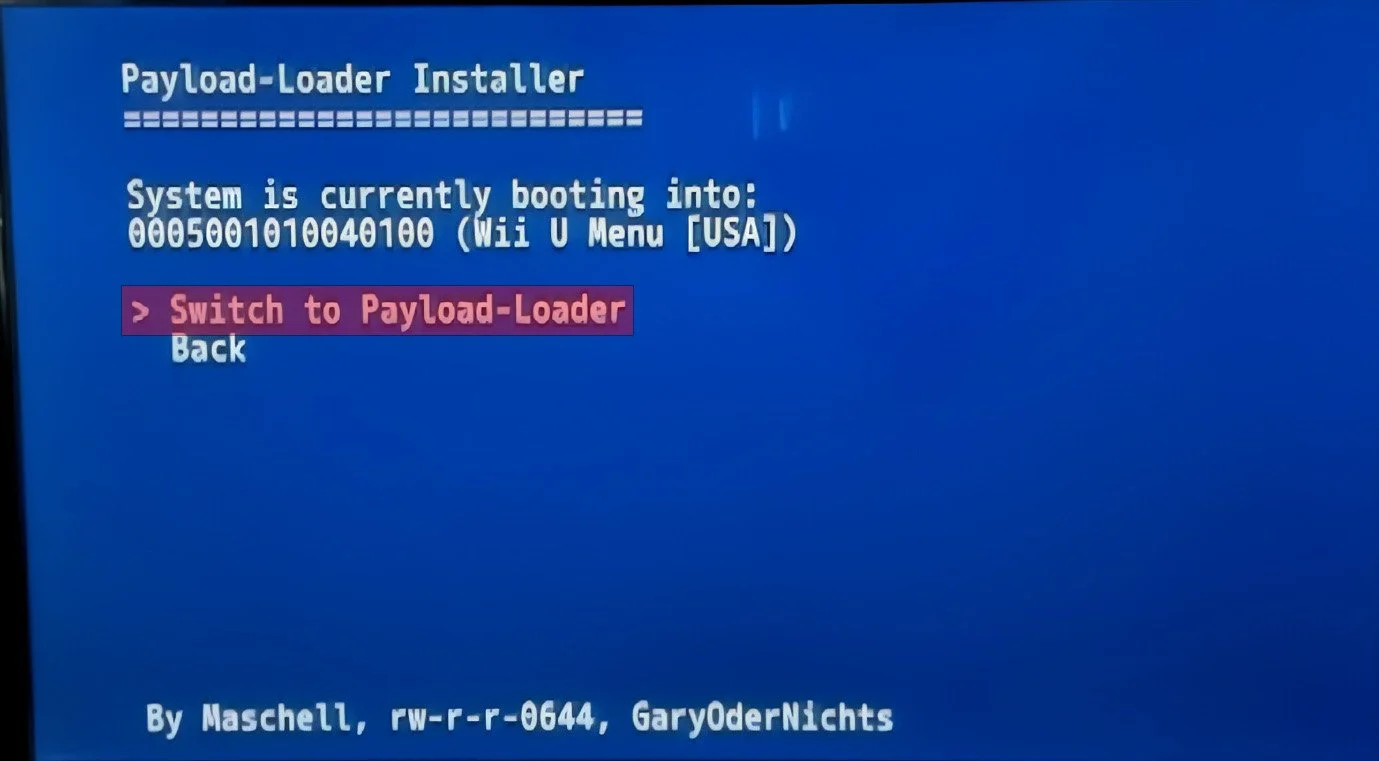
You will be asked if you want to switch the boot title. Press A to select switch to payloadloader.
When the process has finished, press A to shutdown the console.
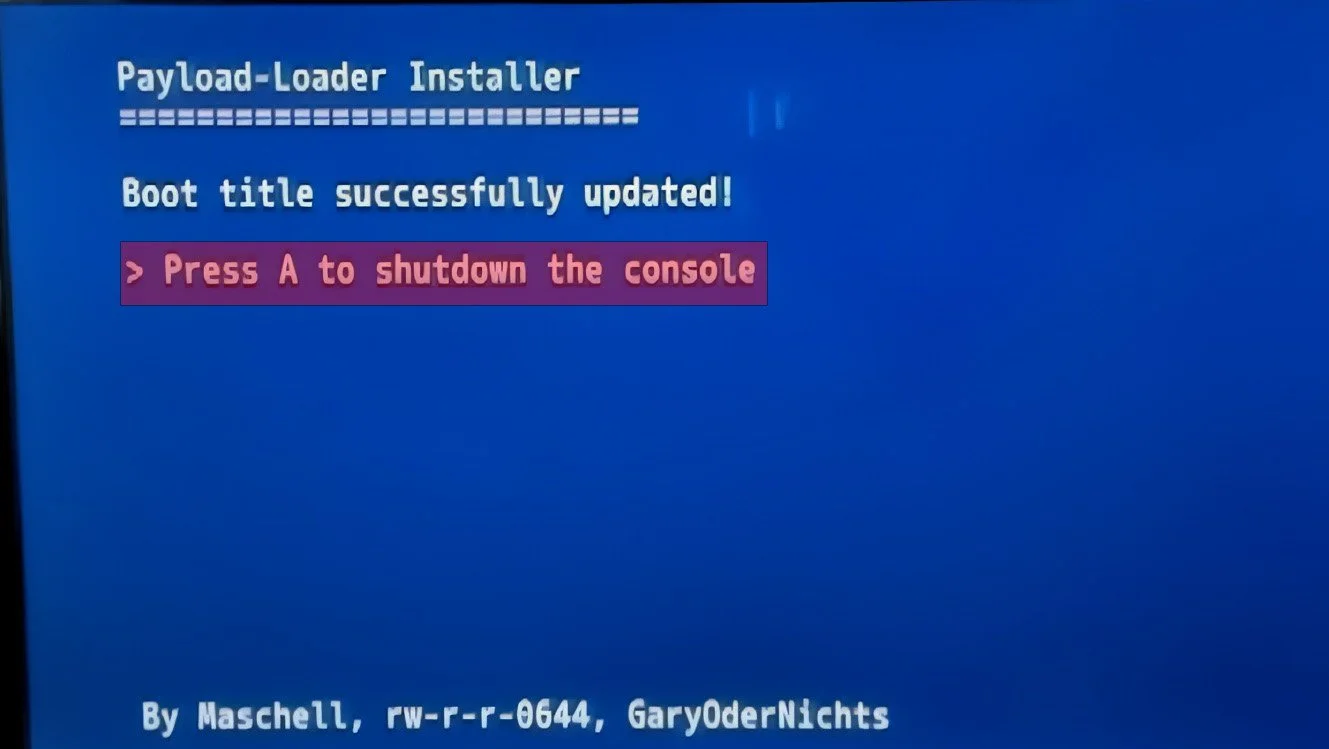
The payloadloader will now be launched automatically every time you start your Wii U.
*******QUICK TIP***********
To open the environment loader in the future, you have to hold the X button while your Wii U is booting
*******QUICK TIP************
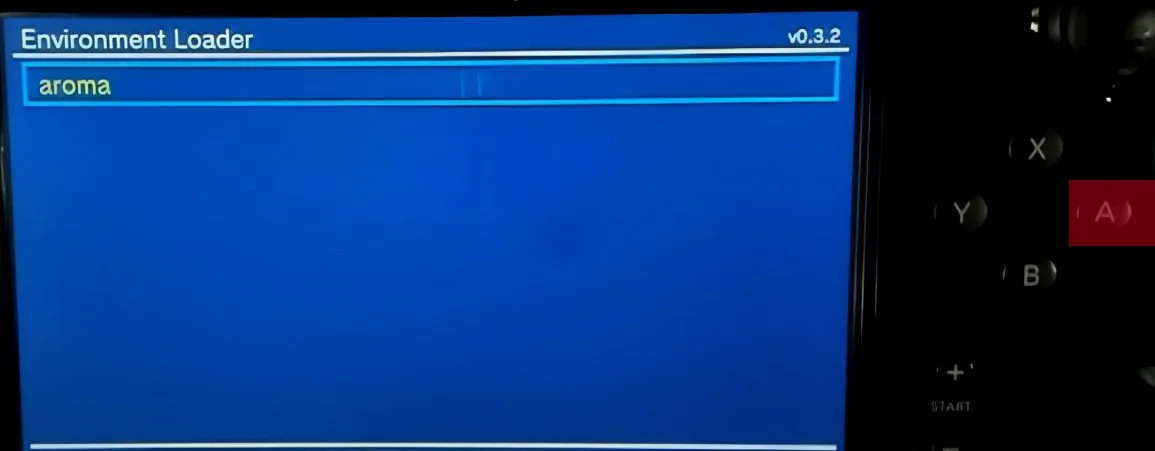
Now it is time to make Aroma start automatically everytime your console boots. Turn on your Wii U and it should automatically boot to the environment loader screen.
The environment loader is the custom firmware you can choose to boot into. Aroma is the most current up to date environment, but you can still load into other previous environments here from the past like Tiramisu if it is present on your SD card in wiiu> environments.
Press the Y button on aroma which will set Aroma to your default environment. Doing this will turn Aroma yellow indicating it is now your default environment.
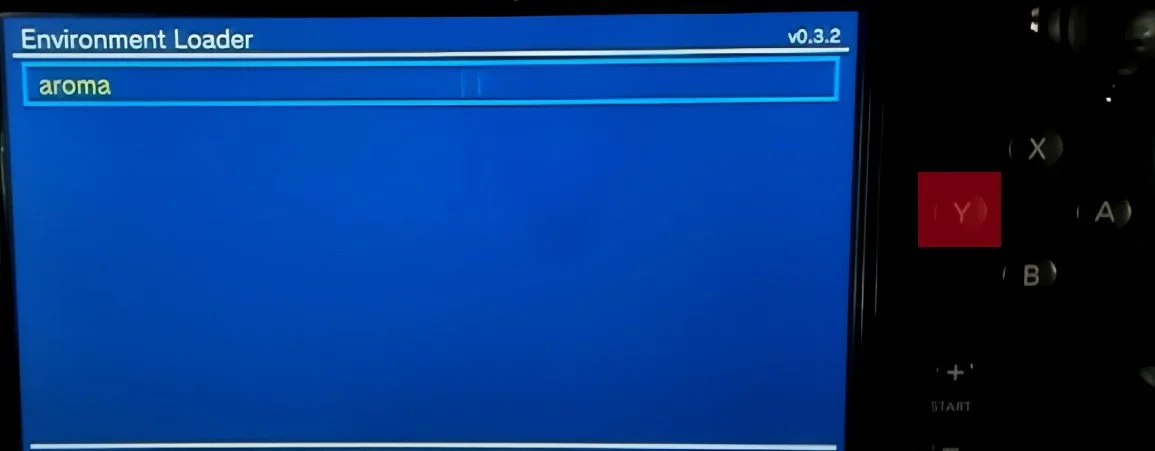
Press A on Aroma to load into Aroma.
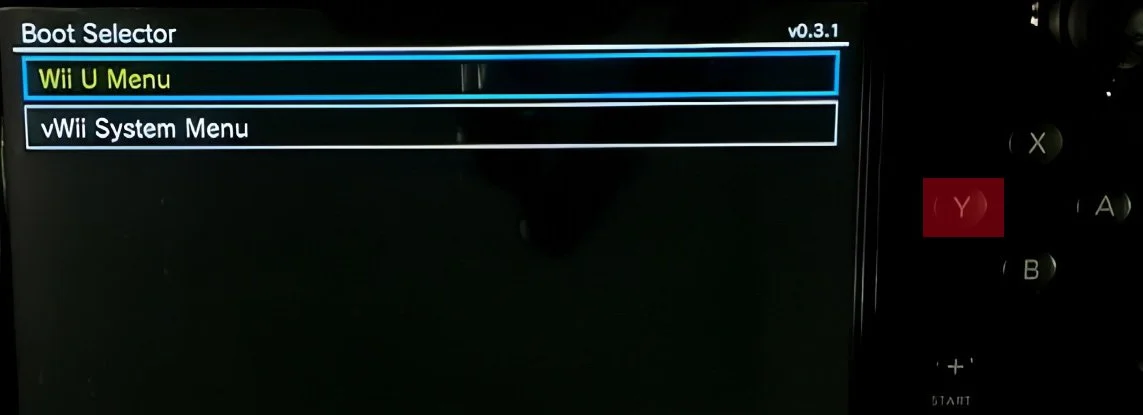
You will now see the boot selector screen. Here you can default which menu you want to load when you turn your Wii U on.
Press the Y button on Wii U Menu which will turn it yellow indicating this is now your default menu.
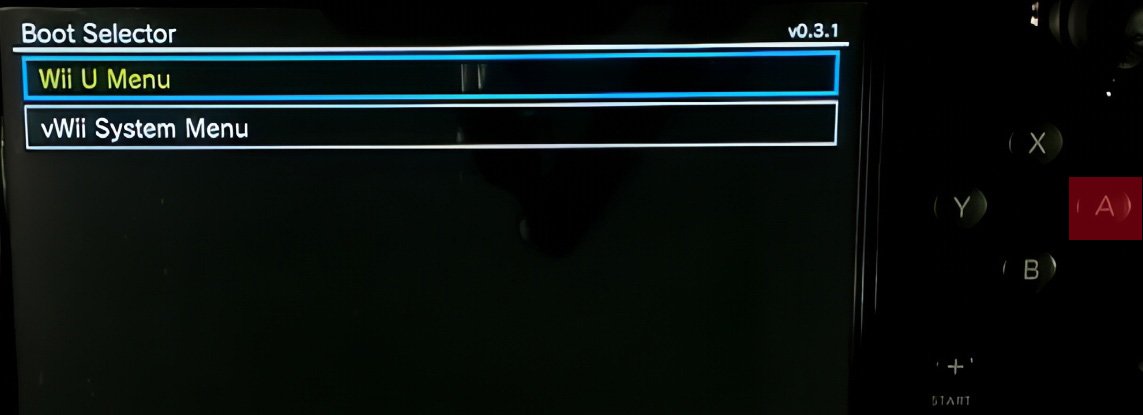
Press A on Wii U menu to launch into the Wii U menu.
********QUICK TIP************
To open the boot selector in the future, you have to hold the start or + button while the console is booting or by loading the health and safety information app.
********QUICK TIP************
Your Wii U side of the console is now fully modded and unlocked ready for a slew of new features to use. You can now load any Wii U homebrew application which is explained in a separate guide and organized on Pencefamilygaming.com along with being linked in the video description.
Section 5: vWII Hacking
I will now delve into modding the Wii side of the system or also known as (vWii) or (virtual Wii). This isn’t a requirement but I highly recommend doing this as it unlocks so many more features like running Wii and Gamecube games direct from a hard drive or SD card and there is no detriment in doing this so let’s go ahead and get started. A Wiimote will need to be used to hack the vWii side of the system. You can always come back later to do this section if you don’t currently have a wiimote.
Go ahead and connect a wiimote now by pressing the red sync button on the front of the Wii U and the red sync button under the battery compartment on the wiimote. Once the controller syncs, follow along with Section 5a.